2D Tutorials
2D Game Development with MonoGame
Master 2D game development from drawing your first sprite to building full particle systems and entity architectures. Each tier builds on the last.
Download the runnable sample project
Use the verified ZIP bundle for this article to review the extracted example files, run the sample host, and repackage the sources without bin or obj folders.
Beginner — First steps in 2D
These tutorials assume you have completed the Getting Started guide and have a running MonoGame project.
Drawing your first sprite
Loading a texture from the content pipeline and rendering it with SpriteBatch is the foundation of every 2D MonoGame project. Place your image file in the Content folder and process it with the MGCB Editor.
private Texture2D _playerTexture;
private Vector2 _playerPosition;

protected override void LoadContent()
{
    _spriteBatch = new SpriteBatch(GraphicsDevice);
    _playerTexture = Content.Load<Texture2D>("player");
    _playerPosition = new Vector2(100, 100);
}

protected override void Draw(GameTime gameTime)
{
    GraphicsDevice.Clear(Color.CornflowerBlue);
    _spriteBatch.Begin();
    _spriteBatch.Draw(_playerTexture, _playerPosition, Color.White);
    _spriteBatch.End();
    base.Draw(gameTime);
}
Handling keyboard input
Read the keyboard state each frame and move the sprite. Store the previous state to detect single key presses versus held keys.
private KeyboardState _currentKeyboard;
private KeyboardState _previousKeyboard;
private float _speed = 200f;

protected override void Update(GameTime gameTime)
{
    _previousKeyboard = _currentKeyboard;
    _currentKeyboard = Keyboard.GetState();

    float dt = (float)gameTime.ElapsedGameTime.TotalSeconds;

    if (_currentKeyboard.IsKeyDown(Keys.W))
        _playerPosition.Y -= _speed * dt;
    if (_currentKeyboard.IsKeyDown(Keys.S))
        _playerPosition.Y += _speed * dt;
    if (_currentKeyboard.IsKeyDown(Keys.A))
        _playerPosition.X -= _speed * dt;
    if (_currentKeyboard.IsKeyDown(Keys.D))
        _playerPosition.X += _speed * dt;

    base.Update(gameTime);
}
Gamepad and mouse input
MonoGame provides unified input for gamepad thumbsticks, triggers, and mouse position. Use GamePad.GetState and Mouse.GetState alongside keyboard input for broader device support.
GamePadState pad = GamePad.GetState(PlayerIndex.One);
if (pad.IsConnected)
{
    _playerPosition.X += pad.ThumbSticks.Left.X * _speed * dt;
    _playerPosition.Y -= pad.ThumbSticks.Left.Y * _speed * dt;
}

MouseState mouse = Mouse.GetState();
if (mouse.LeftButton == ButtonState.Pressed)
{
    _playerPosition = new Vector2(mouse.X, mouse.Y);
}
Sprite sheet animation
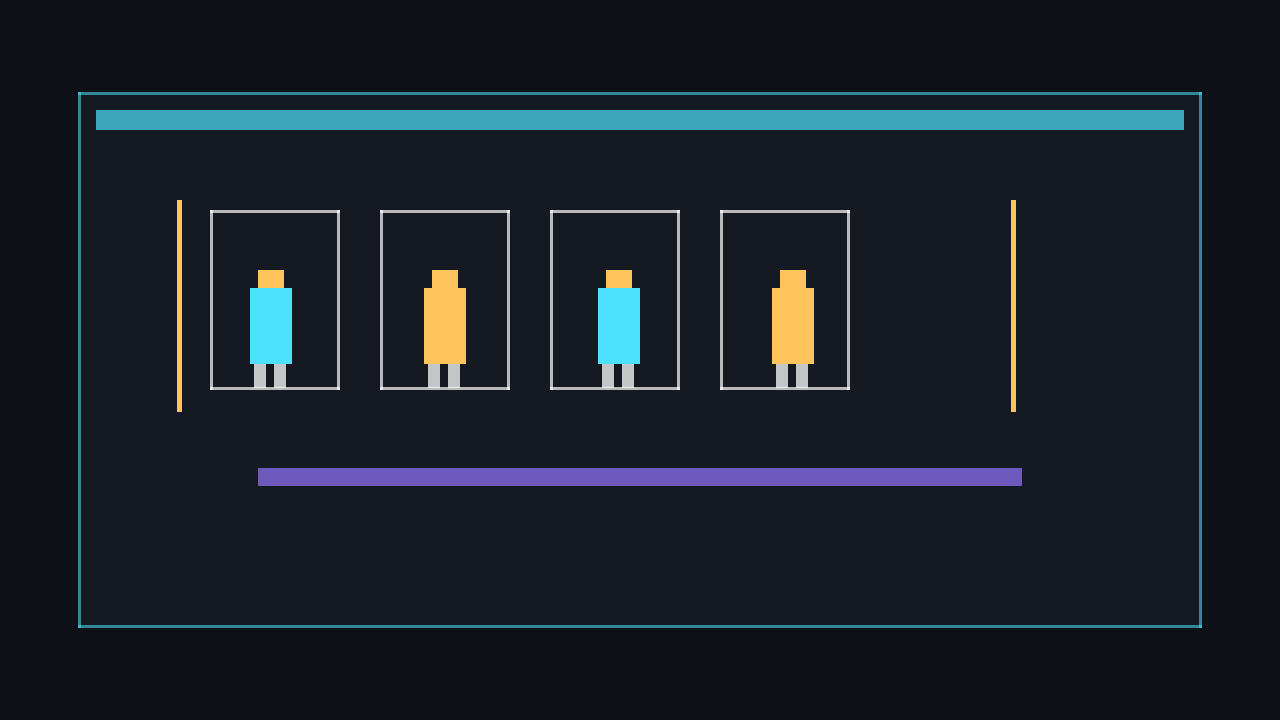
Sprite sheets pack multiple frames into a single texture. Track the current frame, elapsed time, and source rectangle to cycle through the animation.
private Texture2D _spriteSheet;
private int _frameWidth = 64;
private int _frameHeight = 64;
private int _currentFrame;
private int _totalFrames = 4;
private float _frameTimer;
private float _frameInterval = 0.15f;

protected override void Update(GameTime gameTime)
{
    _frameTimer += (float)gameTime.ElapsedGameTime.TotalSeconds;
    if (_frameTimer >= _frameInterval)
    {
        _currentFrame = (_currentFrame + 1) % _totalFrames;
        _frameTimer = 0f;
    }
    base.Update(gameTime);
}

protected override void Draw(GameTime gameTime)
{
    GraphicsDevice.Clear(Color.CornflowerBlue);
    Rectangle sourceRect = new Rectangle(
        _currentFrame * _frameWidth, 0,
        _frameWidth, _frameHeight);

    _spriteBatch.Begin();
    _spriteBatch.Draw(_spriteSheet, _playerPosition, sourceRect, Color.White);
    _spriteBatch.End();
    base.Draw(gameTime);
}
Drawing text with SpriteFont
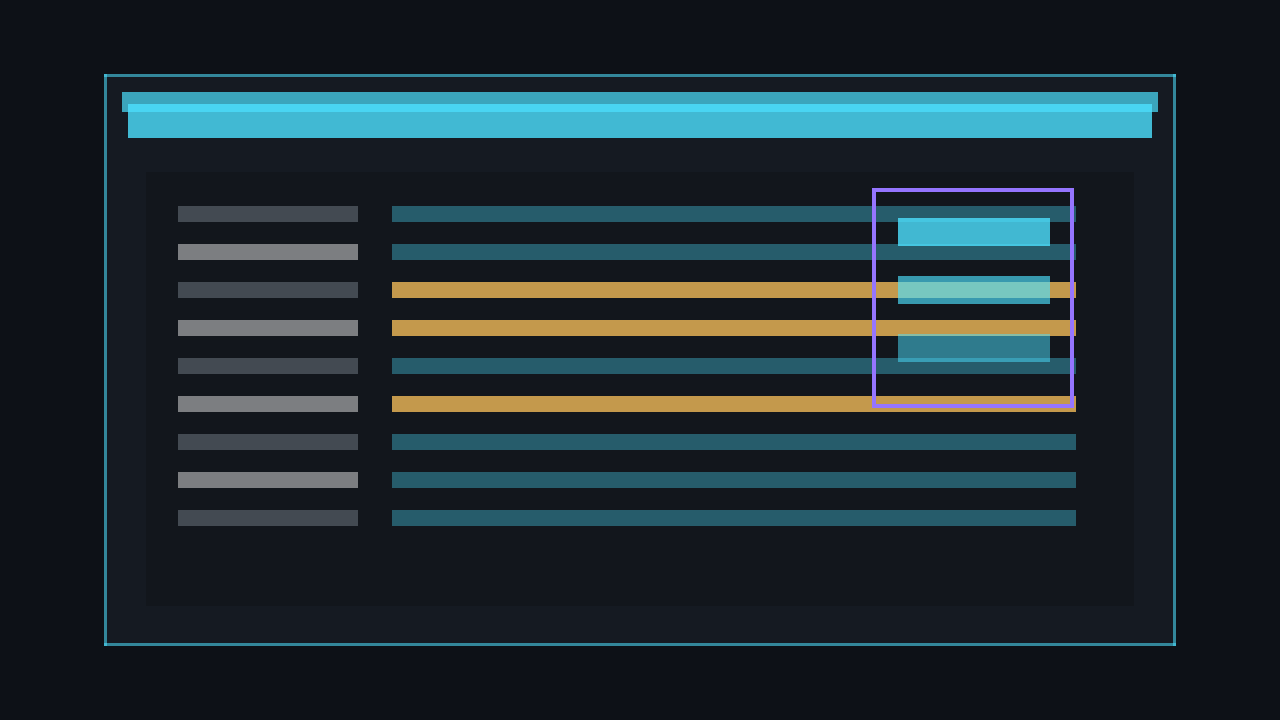
Add a .spritefont file to your content project, process it with the MGCB Editor, and use SpriteBatch.DrawString to render text on screen. This is essential for HUDs, menus, and debug output.
private SpriteFont _font;

protected override void LoadContent()
{
    _spriteBatch = new SpriteBatch(GraphicsDevice);
    _font = Content.Load<SpriteFont>("DefaultFont");
}

protected override void Draw(GameTime gameTime)
{
    GraphicsDevice.Clear(Color.CornflowerBlue);
    _spriteBatch.Begin();
    _spriteBatch.DrawString(_font, "Hello MonoGame!", new Vector2(10, 10), Color.White);
    _spriteBatch.End();
    base.Draw(gameTime);
}
Playing sound effects and music
Load .wav files as SoundEffect and .ogg or .mp3 files as Song. Sound effects play instantly while songs stream through MediaPlayer.
private SoundEffect _jumpSound;
private Song _backgroundMusic;

protected override void LoadContent()
{
    _jumpSound = Content.Load<SoundEffect>("jump");
    _backgroundMusic = Content.Load<Song>("theme");
    MediaPlayer.IsRepeating = true;
    MediaPlayer.Play(_backgroundMusic);
}

protected override void Update(GameTime gameTime)
{
    if (_currentKeyboard.IsKeyDown(Keys.Space) &&
        _previousKeyboard.IsKeyUp(Keys.Space))
    {
        _jumpSound.Play();
    }
    base.Update(gameTime);
}
Screen resolution and scaling
Set a virtual resolution and scale your rendering to fit any window size. This keeps pixel art crisp and layouts consistent across monitors.
private const int VirtualWidth = 320;
private const int VirtualHeight = 180;
private RenderTarget2D _renderTarget;

protected override void Initialize()
{
    _graphics.PreferredBackBufferWidth = 1280;
    _graphics.PreferredBackBufferHeight = 720;
    _graphics.ApplyChanges();
    _renderTarget = new RenderTarget2D(GraphicsDevice, VirtualWidth, VirtualHeight);
    base.Initialize();
}

protected override void Draw(GameTime gameTime)
{
    GraphicsDevice.SetRenderTarget(_renderTarget);
    GraphicsDevice.Clear(Color.CornflowerBlue);
    _spriteBatch.Begin(samplerState: SamplerState.PointClamp);
    // Draw all game objects here at virtual resolution
    _spriteBatch.End();

    GraphicsDevice.SetRenderTarget(null);
    _spriteBatch.Begin(samplerState: SamplerState.PointClamp);
    _spriteBatch.Draw(_renderTarget, GraphicsDevice.Viewport.Bounds, Color.White);
    _spriteBatch.End();
    base.Draw(gameTime);
}
Intermediate — Building real games
With rendering and input basics covered, you can now build game systems that turn prototypes into playable experiences.
Tilemap rendering
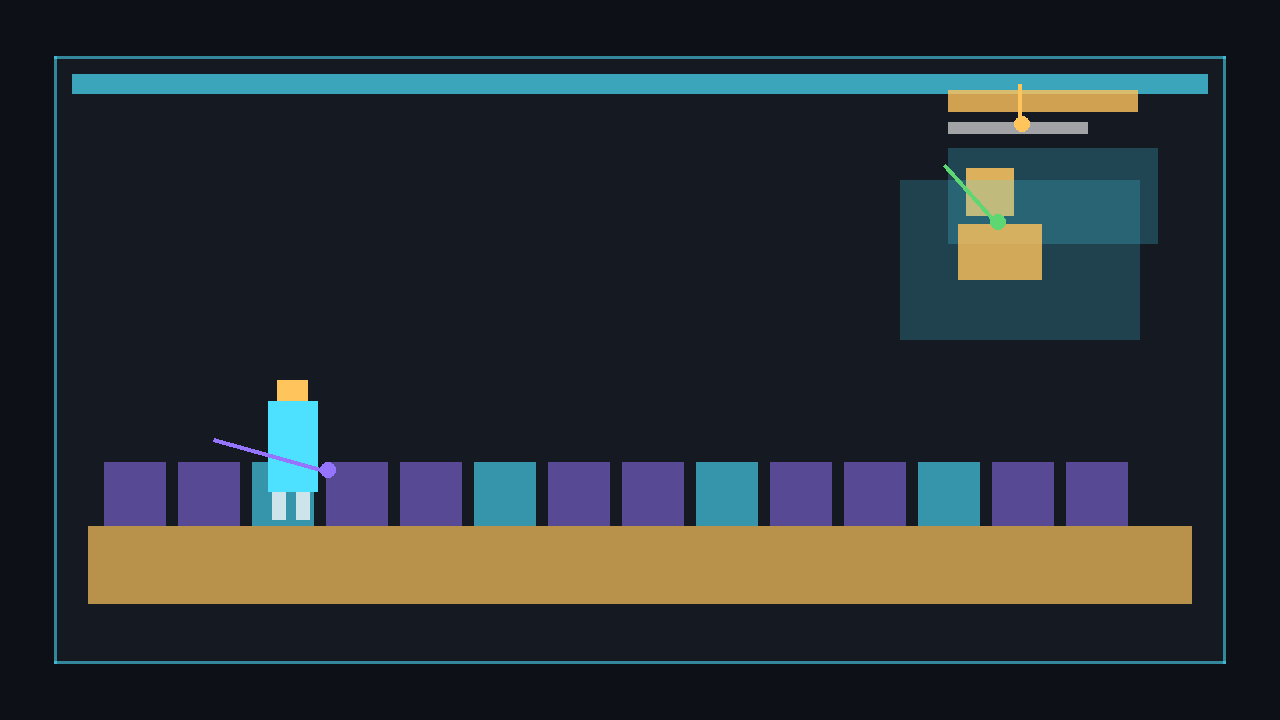
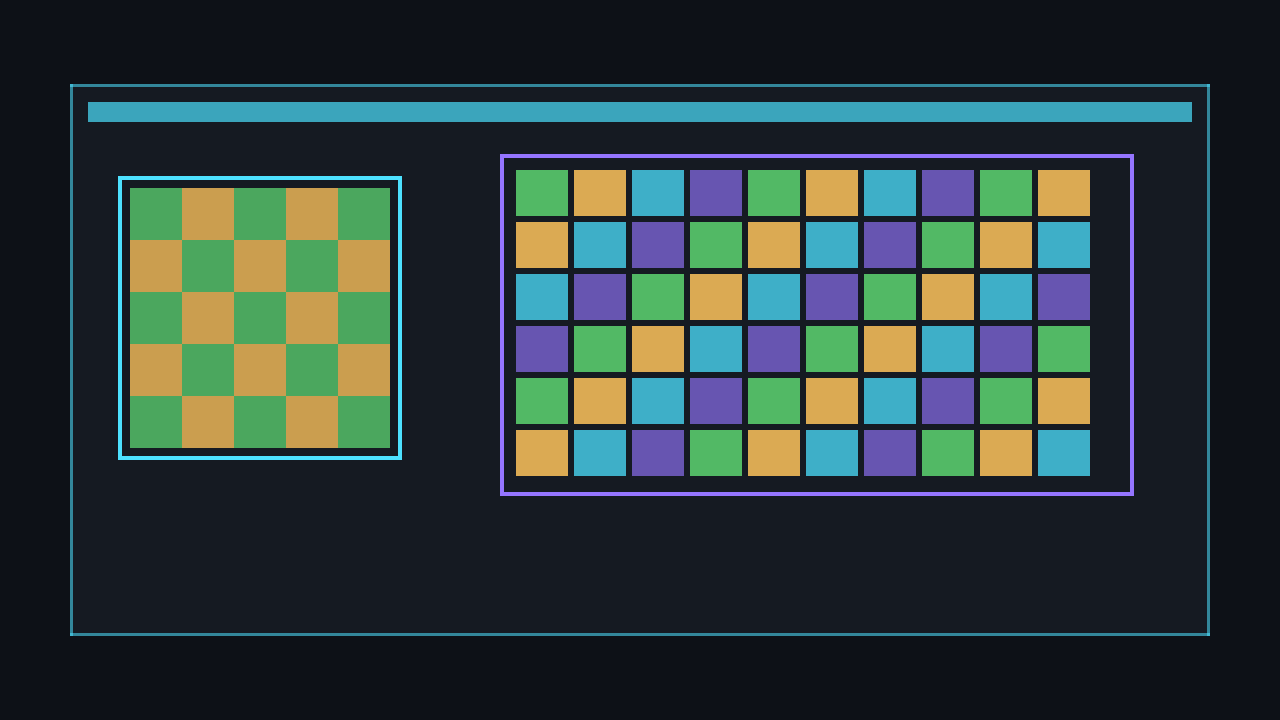
Tilemaps break your world into a grid of tile indices. Each index maps to a source rectangle in a tileset texture. This is the backbone of platformers, RPGs, and strategy games.
private Texture2D _tilesetTexture;
private int _tileSize = 16;
private int _tilesPerRow = 8;

private int[,] _map =
{
    { 0, 0, 1, 1, 0, 0, 0, 0 },
    { 0, 0, 0, 0, 0, 1, 1, 0 },
    { 2, 2, 2, 0, 0, 0, 0, 0 },
    { 2, 2, 2, 2, 2, 2, 2, 2 }
};

protected override void Draw(GameTime gameTime)
{
    GraphicsDevice.Clear(Color.Black);
    _spriteBatch.Begin(samplerState: SamplerState.PointClamp);

    for (int y = 0; y < _map.GetLength(0); y++)
    {
        for (int x = 0; x < _map.GetLength(1); x++)
        {
            int tileId = _map[y, x];
            int sx = (tileId % _tilesPerRow) * _tileSize;
            int sy = (tileId / _tilesPerRow) * _tileSize;
            Rectangle source = new Rectangle(sx, sy, _tileSize, _tileSize);
            Vector2 position = new Vector2(x * _tileSize, y * _tileSize);
            _spriteBatch.Draw(_tilesetTexture, position, source, Color.White);
        }
    }

    _spriteBatch.End();
    base.Draw(gameTime);
}
2D camera with scrolling
A camera is a transformation matrix that offsets everything drawn by SpriteBatch. Centre it on the player and clamp it to the map bounds to prevent showing empty space.
public class Camera2D
{
    public Vector2 Position { get; set; }
    public float Zoom { get; set; } = 1f;
    private readonly Viewport _viewport;

    public Camera2D(Viewport viewport)
    {
        _viewport = viewport;
    }

    public Matrix GetTransform()
    {
        return Matrix.CreateTranslation(
                   -Position.X, -Position.Y, 0) *
               Matrix.CreateScale(Zoom) *
               Matrix.CreateTranslation(
                   _viewport.Width / 2f,
                   _viewport.Height / 2f, 0);
    }

    public void Follow(Vector2 target)
    {
        Position = target;
    }
}

// Usage in Draw:
// _spriteBatch.Begin(transformMatrix: _camera.GetTransform());
Rectangle and circle collision
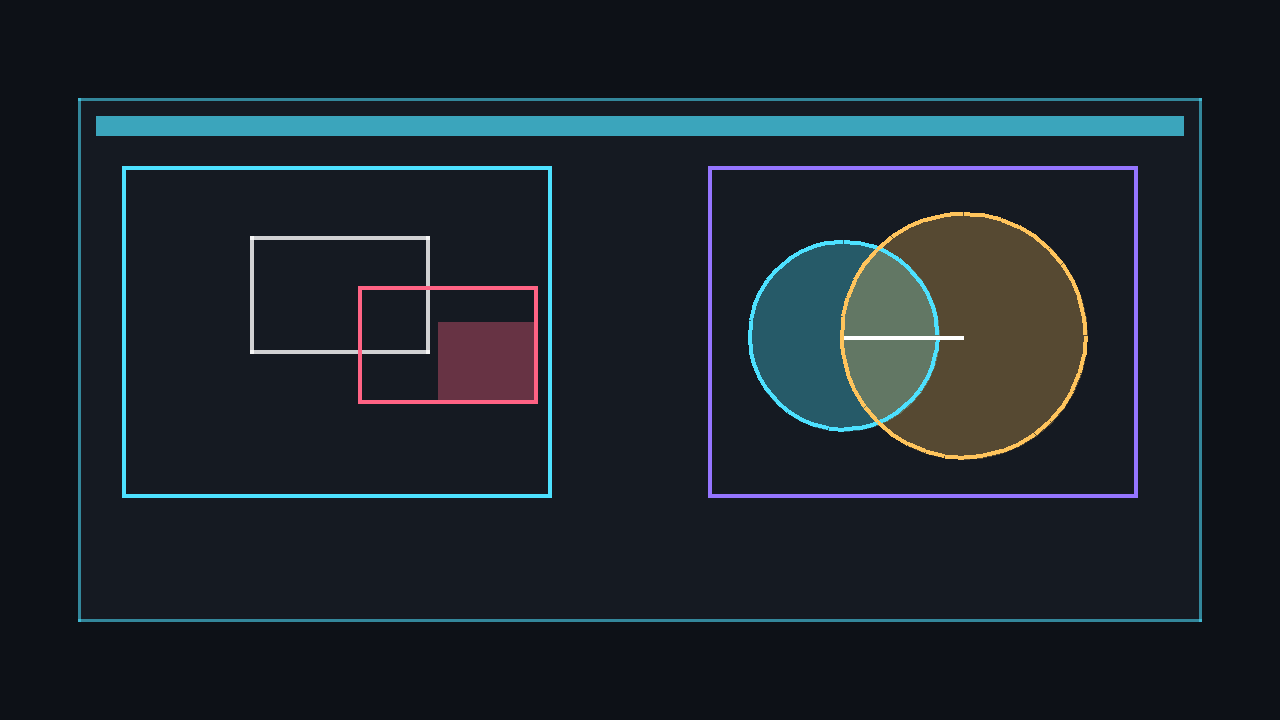
Rectangle collision uses Rectangle.Intersects. For circles, compare the distance between centres against the sum of radii. Combine both for hybrid hit boxes.
public static bool CircleCollision(
    Vector2 centreA, float radiusA,
    Vector2 centreB, float radiusB)
{
    float distSq = Vector2.DistanceSquared(centreA, centreB);
    float radiiSum = radiusA + radiusB;
    return distSq <= radiiSum * radiiSum;
}

// Rectangle collision is built in:
Rectangle boundsA = new Rectangle(10, 10, 32, 32);
Rectangle boundsB = new Rectangle(30, 30, 32, 32);
bool hit = boundsA.Intersects(boundsB);
Game state management
A simple state machine separates menu, gameplay, and pause logic into distinct classes. Each state implements its own Update and Draw, and a manager switches between them.
public interface IGameState
{
    void Enter();
    void Update(GameTime gameTime);
    void Draw(SpriteBatch spriteBatch);
    void Exit();
}

public class StateManager
{
    private IGameState _current;

    public void ChangeState(IGameState next)
    {
        _current?.Exit();
        _current = next;
        _current.Enter();
    }

    public void Update(GameTime gameTime) => _current?.Update(gameTime);
    public void Draw(SpriteBatch sb) => _current?.Draw(sb);
}

// Example states: MenuState, PlayState, PauseState, GameOverState
Building a HUD and menu system
Draw health bars, score counters, and menu buttons as a separate rendering pass after world drawing so they stay fixed on screen. Use SpriteBatch.Begin() without a camera transform for UI elements.
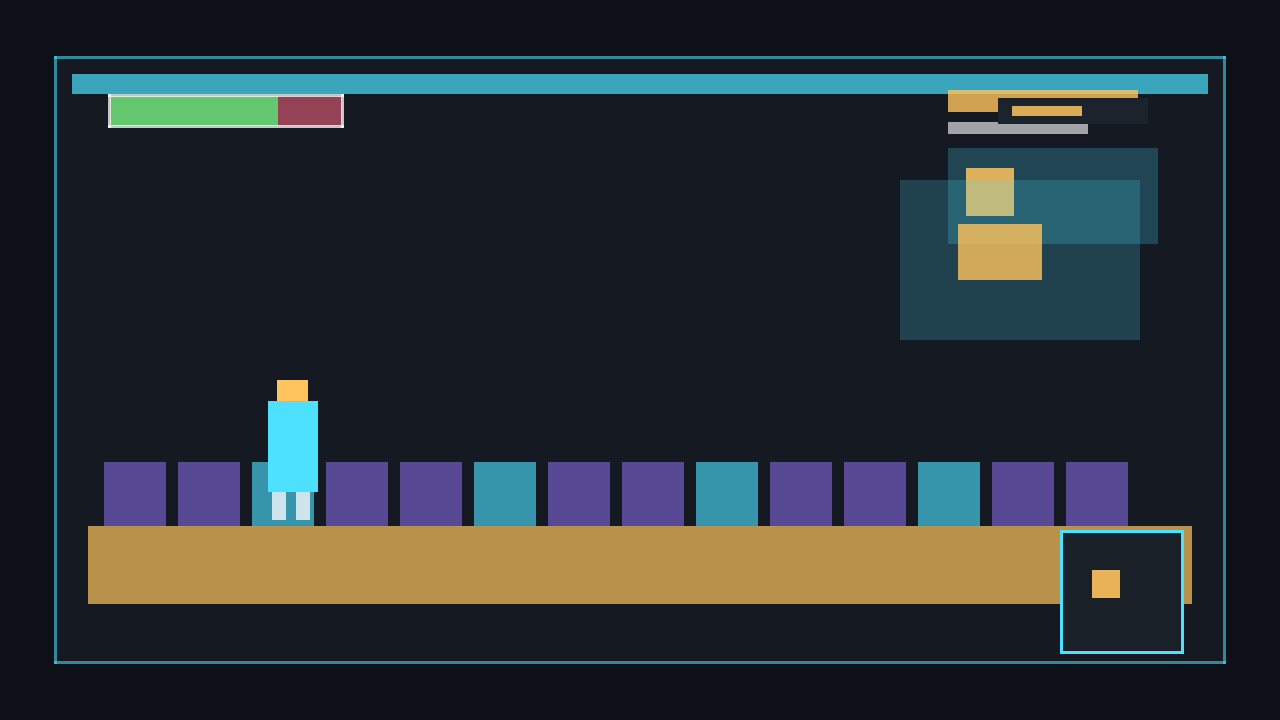
private void DrawHUD()
{
    _spriteBatch.Begin();

    // Health bar background
    Rectangle barBg = new Rectangle(10, 10, 200, 20);
    _spriteBatch.Draw(_pixel, barBg, Color.DarkRed);

    // Health bar fill
    int fillWidth = (int)(200 * (_currentHealth / _maxHealth));
    Rectangle barFill = new Rectangle(10, 10, fillWidth, 20);
    _spriteBatch.Draw(_pixel, barFill, Color.LimeGreen);

    // Score
    _spriteBatch.DrawString(_font, $"Score: {_score}", new Vector2(10, 40), Color.White);

    _spriteBatch.End();
}
Audio management
Wrap sound effects and music in a manager class to control volume, handle overlapping sounds, and provide easy-access play methods across your game.
public class AudioManager
{
    private readonly Dictionary<string, SoundEffect> _sounds = new();
    private float _sfxVolume = 1f;
    private float _musicVolume = 0.5f;

    public void LoadSound(string name, SoundEffect effect)
    {
        _sounds[name] = effect;
    }

    public void PlaySound(string name)
    {
        if (_sounds.TryGetValue(name, out var sfx))
            sfx.Play(_sfxVolume, 0f, 0f);
    }

    public void PlayMusic(Song song)
    {
        MediaPlayer.Volume = _musicVolume;
        MediaPlayer.IsRepeating = true;
        MediaPlayer.Play(song);
    }

    public void SetSFXVolume(float vol) => _sfxVolume = MathHelper.Clamp(vol, 0f, 1f);
    public void SetMusicVolume(float vol)
    {
        _musicVolume = MathHelper.Clamp(vol, 0f, 1f);
        MediaPlayer.Volume = _musicVolume;
    }
}
Scene transitions
Fade-to-black transitions smooth out state changes. Render to an intermediate target, then animate the alpha over a short duration before switching scenes.
private float _fadeAlpha;
private bool _fadingOut;
private IGameState _pendingState;
private float _fadeDuration = 0.5f;

public void TransitionTo(IGameState next)
{
    _pendingState = next;
    _fadingOut = true;
    _fadeAlpha = 0f;
}

private void UpdateFade(float dt)
{
    if (!_fadingOut && _pendingState == null) return;

    _fadeAlpha += dt / _fadeDuration;
    if (_fadeAlpha >= 1f && _fadingOut)
    {
        _fadingOut = false;
        _stateManager.ChangeState(_pendingState);
    }
    else if (!_fadingOut && _fadeAlpha >= 1f)
    {
        _fadeAlpha = 0f;
        _pendingState = null;
    }
}

private void DrawFade()
{
    float alpha = _fadingOut ? _fadeAlpha : 1f - _fadeAlpha;
    _spriteBatch.Begin();
    _spriteBatch.Draw(_pixel, GraphicsDevice.Viewport.Bounds, Color.Black * alpha);
    _spriteBatch.End();
}
Advanced — Professional techniques
These patterns are used in production-quality 2D games. They demand stronger C# skills and familiarity with the MonoGame rendering pipeline.

Particle systems
Object-pooled particles avoid garbage collection spikes. Each particle has position, velocity, lifetime, colour, and scale. Recycle dead particles instead of creating new ones.
public struct Particle
{
    public Vector2 Position;
    public Vector2 Velocity;
    public float Life;
    public float MaxLife;
    public Color Colour;
    public float Scale;
    public bool Active;
}

public class ParticleEmitter
{
    private Particle[] _pool;
    private Texture2D _texture;
    private Random _rng = new();

    public ParticleEmitter(Texture2D texture, int poolSize)
    {
        _texture = texture;
        _pool = new Particle[poolSize];
    }

    public void Emit(Vector2 origin, int count)
    {
        for (int i = 0; i < _pool.Length && count > 0; i++)
        {
            if (_pool[i].Active) continue;
            ref var p = ref _pool[i];
            p.Active = true;
            p.Position = origin;
            p.Velocity = new Vector2(
                (_rng.NextSingle() - 0.5f) * 200f,
                (_rng.NextSingle() - 0.5f) * 200f);
            p.MaxLife = 1f + _rng.NextSingle();
            p.Life = p.MaxLife;
            p.Colour = Color.White;
            p.Scale = 0.5f + _rng.NextSingle() * 0.5f;
            count--;
        }
    }

    public void Update(float dt)
    {
        for (int i = 0; i < _pool.Length; i++)
        {
            if (!_pool[i].Active) continue;
            ref var p = ref _pool[i];
            p.Life -= dt;
            if (p.Life <= 0f) { p.Active = false; continue; }
            p.Position += p.Velocity * dt;
            p.Colour = Color.White * (p.Life / p.MaxLife);
        }
    }

    public void Draw(SpriteBatch sb)
    {
        for (int i = 0; i < _pool.Length; i++)
        {
            if (!_pool[i].Active) continue;
            var p = _pool[i];
            sb.Draw(_texture, p.Position, null, p.Colour,
                0f, Vector2.Zero, p.Scale, SpriteEffects.None, 0f);
        }
    }
}
2D lighting with render targets
Draw lights as radial gradients onto a separate render target, then multiply it over the scene. This creates atmospheric point lights, torches, and day/night cycles.
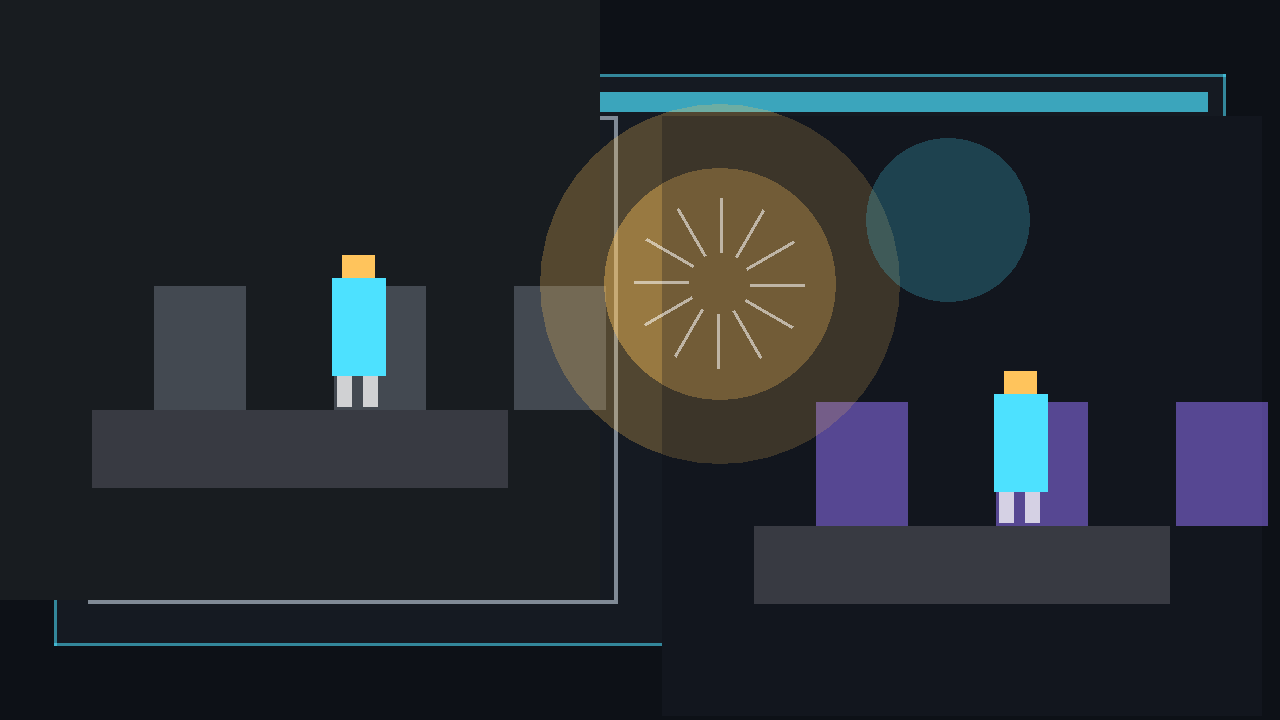
private RenderTarget2D _lightMap;
private Texture2D _lightTexture; // radial gradient circle

protected override void Initialize()
{
    _lightMap = new RenderTarget2D(GraphicsDevice,
        GraphicsDevice.Viewport.Width,
        GraphicsDevice.Viewport.Height);
    base.Initialize();
}

protected override void Draw(GameTime gameTime)
{
    // 1. Draw scene normally
    GraphicsDevice.SetRenderTarget(_sceneTarget);
    GraphicsDevice.Clear(Color.CornflowerBlue);
    _spriteBatch.Begin(transformMatrix: _camera.GetTransform());
    DrawWorld();
    _spriteBatch.End();

    // 2. Draw lights onto the light map
    GraphicsDevice.SetRenderTarget(_lightMap);
    GraphicsDevice.Clear(new Color(30, 30, 30)); // ambient darkness
    _spriteBatch.Begin(blendState: BlendState.Additive);
    foreach (var light in _lights)
    {
        _spriteBatch.Draw(_lightTexture,
            light.Position - _camera.Position,
            null, light.Colour, 0f, Vector2.Zero,
            light.Radius / 128f, SpriteEffects.None, 0f);
    }
    _spriteBatch.End();

    // 3. Combine: scene * light map
    GraphicsDevice.SetRenderTarget(null);
    _spriteBatch.Begin(blendState: Multiply);
    _spriteBatch.Draw(_sceneTarget, Vector2.Zero, Color.White);
    _spriteBatch.End();
    _spriteBatch.Begin(blendState: BlendState.Additive);
    _spriteBatch.Draw(_lightMap, Vector2.Zero, Color.White);
    _spriteBatch.End();

    base.Draw(gameTime);
}
Simple 2D physics
Implement gravity, velocity, and axis-aligned collision response to create platformer movement. Separate the X and Y axes when resolving overlaps so the character slides along surfaces.
private Vector2 _velocity;
private float _gravity = 800f;
private float _jumpForce = -350f;
private bool _grounded;

protected override void Update(GameTime gameTime)
{
    float dt = (float)gameTime.ElapsedGameTime.TotalSeconds;

    // Apply gravity
    _velocity.Y += _gravity * dt;

    // Jump
    if (_grounded && _currentKeyboard.IsKeyDown(Keys.Space))
        _velocity.Y = _jumpForce;

    // Horizontal movement
    _velocity.X = 0f;
    if (_currentKeyboard.IsKeyDown(Keys.A)) _velocity.X = -200f;
    if (_currentKeyboard.IsKeyDown(Keys.D)) _velocity.X = 200f;

    // Move and resolve X axis
    _playerPosition.X += _velocity.X * dt;
    ResolveHorizontalCollisions();

    // Move and resolve Y axis
    _playerPosition.Y += _velocity.Y * dt;
    _grounded = false;
    ResolveVerticalCollisions();

    base.Update(gameTime);
}

private void ResolveVerticalCollisions()
{
    Rectangle playerRect = GetPlayerBounds();
    foreach (var tile in GetNearbyTiles(playerRect))
    {
        if (!playerRect.Intersects(tile)) continue;
        if (_velocity.Y > 0f)
        {
            _playerPosition.Y = tile.Top - playerRect.Height;
            _grounded = true;
        }
        else if (_velocity.Y < 0f)
        {
            _playerPosition.Y = tile.Bottom;
        }
        _velocity.Y = 0f;
    }
}
Entity-Component-System architecture
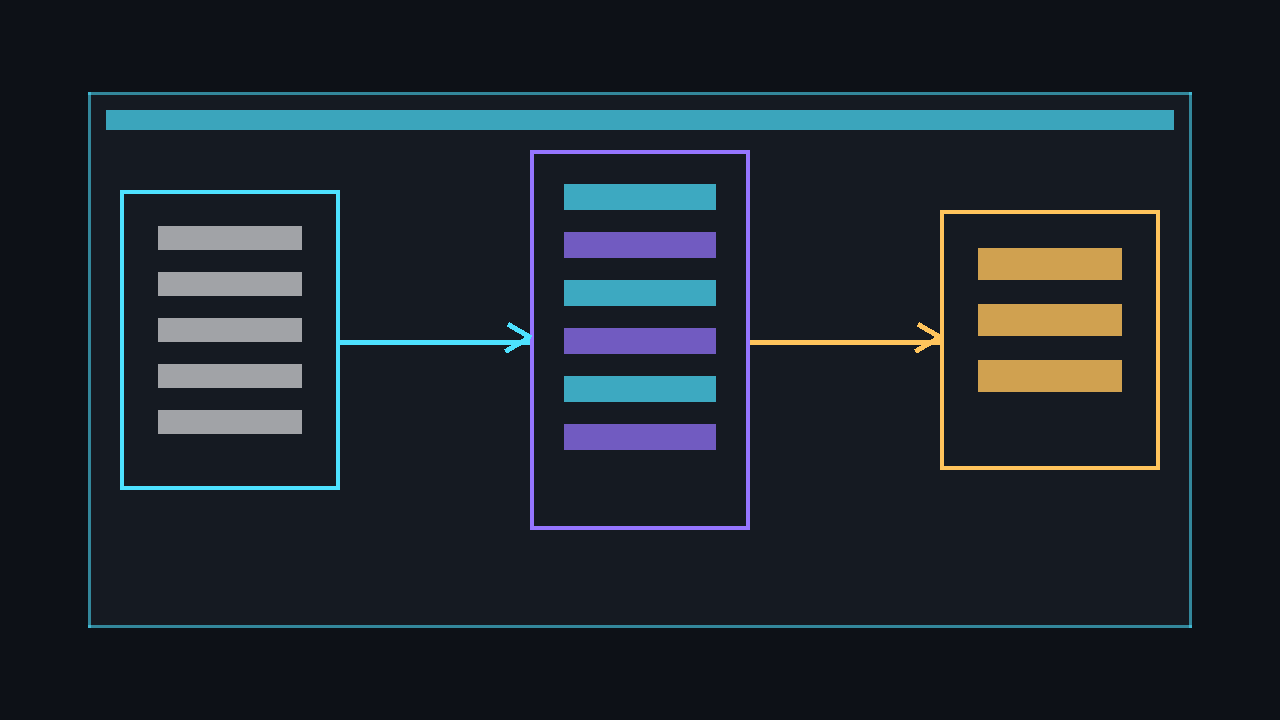
ECS separates data (components) from behaviour (systems). Entities are lightweight identifiers, components hold raw data, and systems iterate over matching component sets. This scales far better than deep inheritance trees.
public struct TransformComponent
{
    public Vector2 Position;
    public float Rotation;
    public float Scale;
}

public struct SpriteComponent
{
    public Texture2D Texture;
    public Rectangle Source;
    public Color Tint;
}

public struct VelocityComponent
{
    public Vector2 Value;
}

public class World
{
    private int _nextId;
    private Dictionary<int, TransformComponent> _transforms = new();
    private Dictionary<int, SpriteComponent> _sprites = new();
    private Dictionary<int, VelocityComponent> _velocities = new();

    public int CreateEntity() => _nextId++;

    public void AddTransform(int id, TransformComponent c) => _transforms[id] = c;
    public void AddSprite(int id, SpriteComponent c) => _sprites[id] = c;
    public void AddVelocity(int id, VelocityComponent c) => _velocities[id] = c;

    public void RunMovement(float dt)
    {
        foreach (var kvp in _velocities)
        {
            if (!_transforms.ContainsKey(kvp.Key)) continue;
            var t = _transforms[kvp.Key];
            t.Position += kvp.Value.Value * dt;
            _transforms[kvp.Key] = t;
        }
    }

    public void RunRender(SpriteBatch sb)
    {
        foreach (var kvp in _sprites)
        {
            if (!_transforms.ContainsKey(kvp.Key)) continue;
            var t = _transforms[kvp.Key];
            var s = kvp.Value;
            sb.Draw(s.Texture, t.Position, s.Source, s.Tint,
                t.Rotation, Vector2.Zero, t.Scale, SpriteEffects.None, 0f);
        }
    }
}
A* pathfinding on a grid
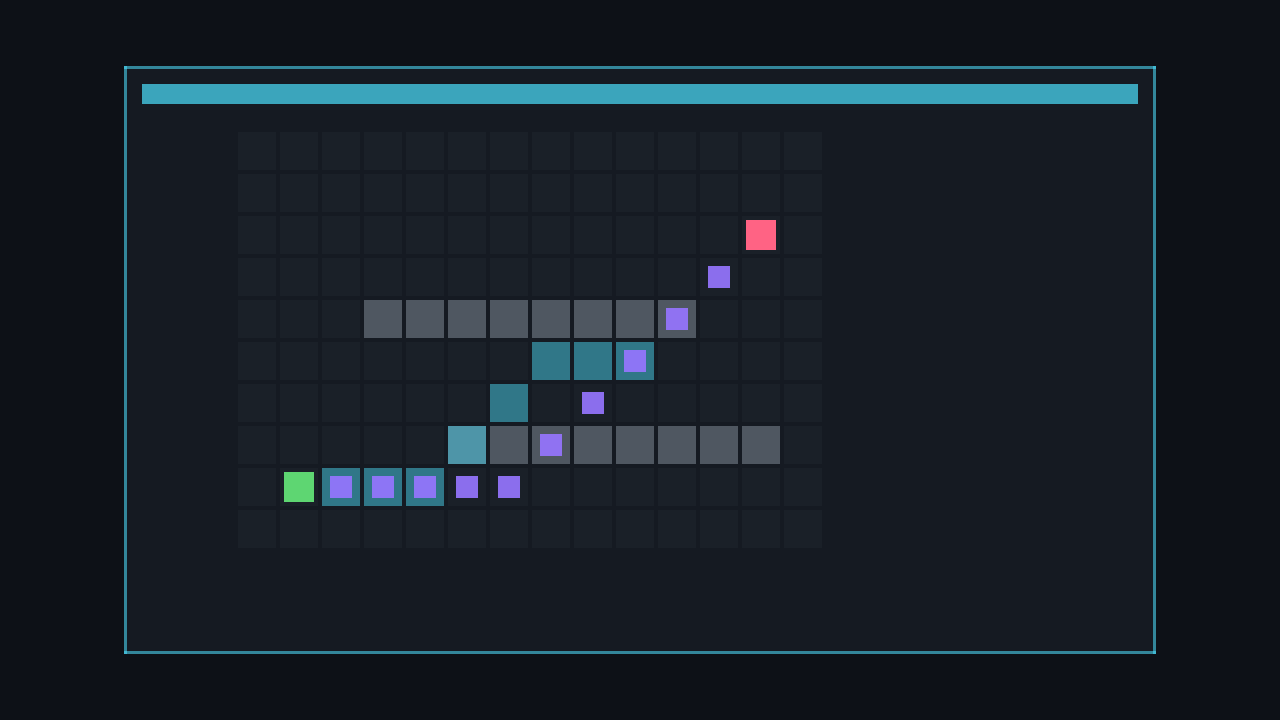
A* is the standard pathfinding algorithm for tile-based games. It uses a priority queue to explore the cheapest path first, guided by a heuristic (Manhattan distance for 4-directional grids).
public class AStarPathfinder
{
    private readonly int _width, _height;
    private readonly bool[,] _walkable;

    public AStarPathfinder(bool[,] walkable)
    {
        _width = walkable.GetLength(1);
        _height = walkable.GetLength(0);
        _walkable = walkable;
    }

    public List<Point> FindPath(Point start, Point goal)
    {
        var open = new PriorityQueue<Point, int>();
        var cameFrom = new Dictionary<Point, Point>();
        var costSoFar = new Dictionary<Point, int>();

        open.Enqueue(start, 0);
        costSoFar[start] = 0;

        while (open.Count > 0)
        {
            var current = open.Dequeue();
            if (current == goal) return ReconstructPath(cameFrom, start, goal);

            foreach (var next in GetNeighbours(current))
            {
                int newCost = costSoFar[current] + 1;
                if (costSoFar.ContainsKey(next) && newCost >= costSoFar[next])
                    continue;
                costSoFar[next] = newCost;
                int priority = newCost + Heuristic(next, goal);
                open.Enqueue(next, priority);
                cameFrom[next] = current;
            }
        }
        return new List<Point>();
    }

    private int Heuristic(Point a, Point b) =>
        Math.Abs(a.X - b.X) + Math.Abs(a.Y - b.Y);

    private IEnumerable<Point> GetNeighbours(Point p)
    {
        Point[] dirs = { new(0,-1), new(0,1), new(-1,0), new(1,0) };
        foreach (var d in dirs)
        {
            int nx = p.X + d.X, ny = p.Y + d.Y;
            if (nx >= 0 && nx < _width &&
                ny >= 0 && ny < _height && _walkable[ny, nx])
                yield return new Point(nx, ny);
        }
    }

    private List<Point> ReconstructPath(
        Dictionary<Point, Point> cameFrom, Point start, Point goal)
    {
        var path = new List<Point>();
        var current = goal;
        while (current != start)
        {
            path.Add(current);
            current = cameFrom[current];
        }
        path.Reverse();
        return path;
    }
}
Spatial hashing for collision
Checking every entity against every other entity is O(n²). A spatial hash divides the world into cells and only checks entities sharing the same cell, drastically reducing comparisons.
public class SpatialHash<T>
{
    private readonly int _cellSize;
    private readonly Dictionary<long, List<T>> _cells = new();

    public SpatialHash(int cellSize) => _cellSize = cellSize;

    public void Clear() => _cells.Clear();

    public void Insert(T item, Rectangle bounds)
    {
        int minX = bounds.Left / _cellSize;
        int minY = bounds.Top / _cellSize;
        int maxX = bounds.Right / _cellSize;
        int maxY = bounds.Bottom / _cellSize;

        for (int y = minY; y <= maxY; y++)
        for (int x = minX; x <= maxX; x++)
        {
            long key = ((long)x << 32) | (uint)y;
            if (!_cells.TryGetValue(key, out var list))
            {
                list = new List<T>();
                _cells[key] = list;
            }
            list.Add(item);
        }
    }

    public IEnumerable<T> Query(Rectangle bounds)
    {
        var seen = new HashSet<T>();
        int minX = bounds.Left / _cellSize;
        int minY = bounds.Top / _cellSize;
        int maxX = bounds.Right / _cellSize;
        int maxY = bounds.Bottom / _cellSize;

        for (int y = minY; y <= maxY; y++)
        for (int x = minX; x <= maxX; x++)
        {
            long key = ((long)x << 32) | (uint)y;
            if (!_cells.TryGetValue(key, out var list)) continue;
            foreach (var item in list)
                if (seen.Add(item)) yield return item;
        }
    }
}
Custom shader effects
Write HLSL pixel shaders for post-processing effects such as vignette, chromatic aberration, or CRT scanlines. Compile .fx files through the content pipeline and apply them via SpriteBatch.Begin.
sampler TextureSampler : register(s0);
float2 Resolution;
float Intensity = 0.8;

float4 PixelShaderFunction(float2 texCoord : TEXCOORD0) : COLOR0
{
    float4 colour = tex2D(TextureSampler, texCoord);
    float2 centre = float2(0.5, 0.5);
    float dist = distance(texCoord, centre);
    float vignette = smoothstep(0.7, 0.3, dist * Intensity);
    colour.rgb *= vignette;
    return colour;
}

technique Technique1
{
    pass Pass1
    {
        PixelShader = compile ps_3_0 PixelShaderFunction();
    }
}
Continue your journey with 3D tutorials, learn about platform setup, or explore game architecture patterns.