Core Loop & States
The Basic Game Loop
The game loop is the beating heart of every MonoGame project. This tutorial explains exactly what happens on every frame, how Update and Draw cooperate, why delta time matters, and the difference between fixed and variable timestep. By the end you will have a small, complete, runnable game that moves a box across the screen frame-rate independently.
Download the runnable sample project
Use the verified ZIP bundle for this article to review the extracted example files, run the sample host, and repackage the sources without bin or obj folders.
What is a game loop?
A game loop is an infinite loop that runs while your game is open. On each iteration — called a frame — the game does two jobs: it updates the world (move things, read input, run physics) and then draws the world to the screen. MonoGame runs this loop for you; you only fill in the behaviour.
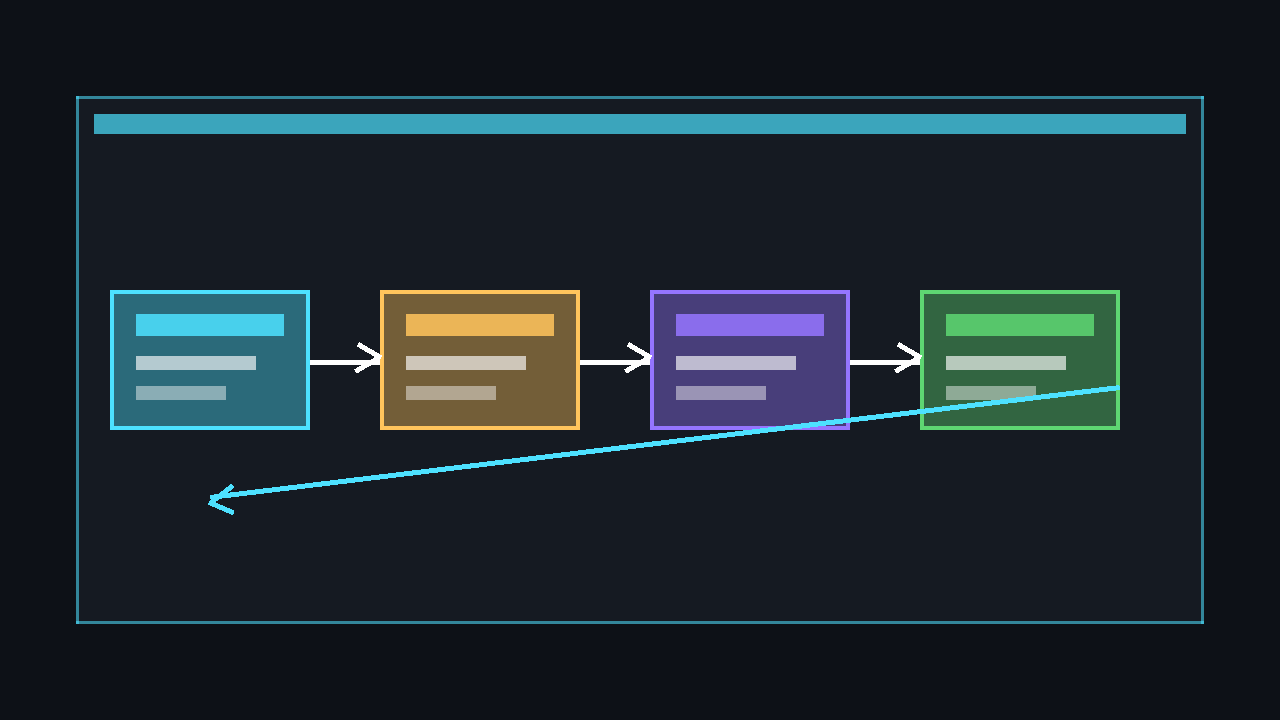
💡 MonoGame's Game class already contains the loop. You never write while (true) yourself — you override the lifecycle methods below and MonoGame calls them at the right time.
The four lifecycle methods
Every MonoGame Game subclass overrides four methods. They run in a strict order: Initialize once, then LoadContent once, then Update and Draw repeatedly until you exit.
using Microsoft.Xna.Framework;
using Microsoft.Xna.Framework.Graphics;

public class Game1 : Game
{
    private GraphicsDeviceManager _graphics;
    private SpriteBatch _spriteBatch;

    public Game1()
    {
        _graphics = new GraphicsDeviceManager(this);
        Content.RootDirectory = "Content";
        IsMouseVisible = true;
    }

    protected override void Initialize()
    {
        // Runs once. Set up non-graphics state and configuration here.
        base.Initialize();
    }

    protected override void LoadContent()
    {
        // Runs once, after Initialize. Load textures, fonts, sounds here.
        _spriteBatch = new SpriteBatch(GraphicsDevice);
    }

    protected override void Update(GameTime gameTime)
    {
        // Runs every frame BEFORE Draw. Game logic goes here.
        base.Update(gameTime);
    }

    protected override void Draw(GameTime gameTime)
    {
        // Runs every frame AFTER Update. Rendering goes here.
        GraphicsDevice.Clear(Color.CornflowerBlue);
        base.Draw(gameTime);
    }
}- Initialize — one-time setup that does not need loaded content (window size, services, starting values).
- LoadContent — one-time loading of textures, fonts, sounds, and models. Called after
Initialize. - Update — called every frame. Read input, move objects, run collisions. Never draw here.
- Draw — called every frame after Update. Clear the screen and render. Never change game state here.
⚠️ Caution: Keep logic in Update and rendering in Draw. Mixing them is the single most common beginner mistake and causes flicker, inconsistent physics, and bugs that only appear at certain frame rates.
Delta time & frame independence
Different computers run at different frame rates. If you move an object by a fixed number of pixels per frame, it moves faster on fast machines and slower on slow machines. The fix is delta time: the number of seconds since the previous frame, available from gameTime.ElapsedGameTime.TotalSeconds. Multiply speeds by delta time so movement is measured in pixels per second, not pixels per frame.
private Vector2 _position = new Vector2(100, 100);
private float _speedPixelsPerSecond = 200f;

protected override void Update(GameTime gameTime)
{
    float dt = (float)gameTime.ElapsedGameTime.TotalSeconds;

    // Moves 200 pixels every second, regardless of frame rate.
    _position.X += _speedPixelsPerSecond * dt;

    base.Update(gameTime);
}
⚠️ Warning: A value like _position.X += 5; (no dt) ties speed to frame rate. On a 144 Hz monitor the object travels almost 2.5× faster than at 60 Hz. Always multiply movement, rotation, and timers by delta time.
Fixed vs variable timestep
MonoGame supports two update strategies, controlled by IsFixedTimeStep.
- Fixed timestep (default) —
Updateis called a fixed number of times per second (60 by default). Predictable and great for physics. If a frame runs long, MonoGame callsUpdateextra times to catch up (gameTime.IsRunningSlowlybecomestrue). - Variable timestep —
Updateis called as fast as possible anddtvaries each frame. Smoother on high-refresh displays but you must use delta time everywhere.
public Game1()
{
    _graphics = new GraphicsDeviceManager(this);
    Content.RootDirectory = "Content";

    // Fixed 60 Hz update (this is the default).
    IsFixedTimeStep = true;
    TargetElapsedTime = System.TimeSpan.FromSeconds(1d / 60d);

    // To use variable timestep instead, set:
    // IsFixedTimeStep = false;
    // _graphics.SynchronizeWithVerticalRetrace = false; // uncap frame rate
}
Complete example: a bouncing box
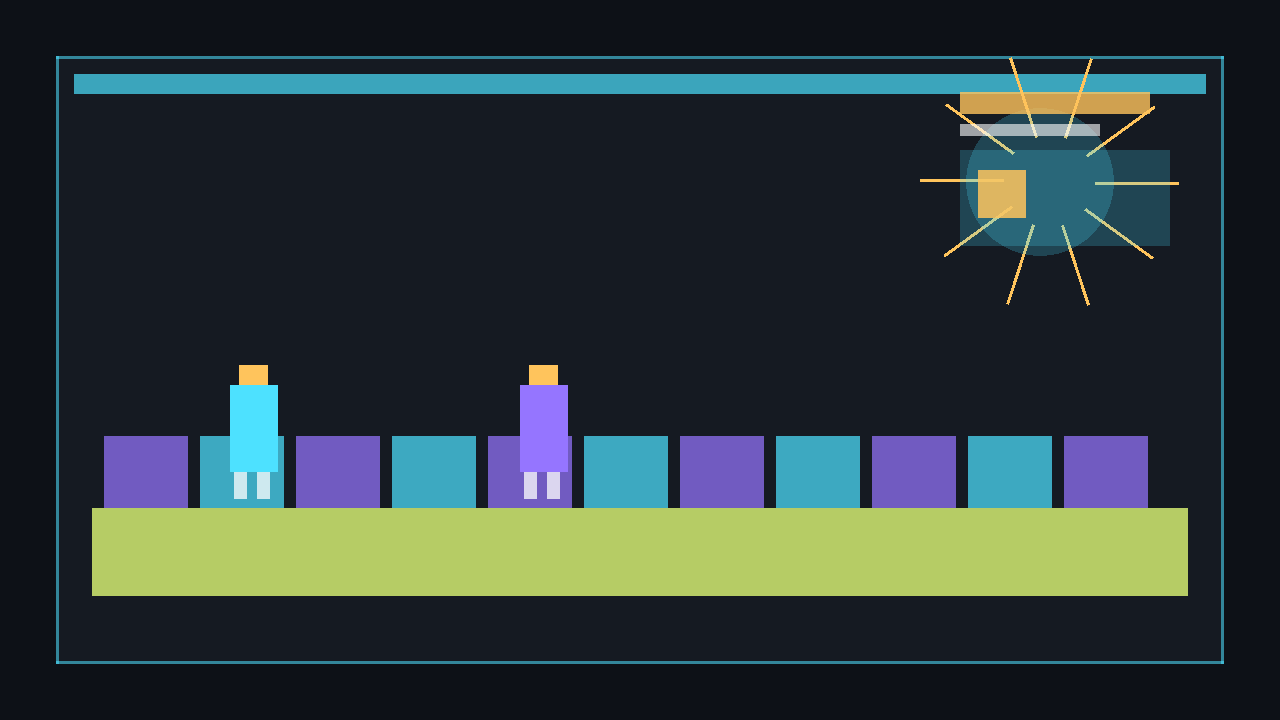
This is a full, self-contained Game1.cs. It generates its own texture in code — a single white pixel stretched to a square — so you do not need any image files. The box moves with delta time and bounces off the window edges.
using Microsoft.Xna.Framework;
using Microsoft.Xna.Framework.Graphics;
using Microsoft.Xna.Framework.Input;

public class Game1 : Game
{
    private GraphicsDeviceManager _graphics;
    private SpriteBatch _spriteBatch;

    // A 1x1 white texture we create in code, then stretch to draw a box.
    private Texture2D _pixel;
    private Vector2 _position = new Vector2(100, 100);
    private Vector2 _velocity = new Vector2(220, 160); // pixels per second
    private const int BoxSize = 48;

    public Game1()
    {
        _graphics = new GraphicsDeviceManager(this);
        Content.RootDirectory = "Content";
        IsMouseVisible = true;
    }

    protected override void LoadContent()
    {
        _spriteBatch = new SpriteBatch(GraphicsDevice);

        // Generate a solid-white 1x1 texture at runtime (no image file needed).
        _pixel = new Texture2D(GraphicsDevice, 1, 1);
        _pixel.SetData(new[] { Color.White });
    }

    protected override void Update(GameTime gameTime)
    {
        if (Keyboard.GetState().IsKeyDown(Keys.Escape))
            Exit();

        float dt = (float)gameTime.ElapsedGameTime.TotalSeconds;
        _position += _velocity * dt;

        var bounds = GraphicsDevice.Viewport.Bounds;

        // Bounce off the left/right edges.
        if (_position.X < 0) { _position.X = 0; _velocity.X = -_velocity.X; }
        if (_position.X + BoxSize > bounds.Width)
        {
            _position.X = bounds.Width - BoxSize;
            _velocity.X = -_velocity.X;
        }

        // Bounce off the top/bottom edges.
        if (_position.Y < 0) { _position.Y = 0; _velocity.Y = -_velocity.Y; }
        if (_position.Y + BoxSize > bounds.Height)
        {
            _position.Y = bounds.Height - BoxSize;
            _velocity.Y = -_velocity.Y;
        }

        base.Update(gameTime);
    }

    protected override void Draw(GameTime gameTime)
    {
        GraphicsDevice.Clear(Color.CornflowerBlue);

        _spriteBatch.Begin();
        var rect = new Rectangle((int)_position.X, (int)_position.Y, BoxSize, BoxSize);
        _spriteBatch.Draw(_pixel, rect, Color.OrangeRed);
        _spriteBatch.End();

        base.Draw(gameTime);
    }
}
Run it with dotnet run. Press Escape to quit. Try changing _velocity or BoxSize and watch the behaviour change.
dotnet build
dotnet run
Common pitfalls
- Forgetting
base.Update/base.Draw. Components and some engine features will silently stop working. - Moving objects without delta time. Speed becomes tied to frame rate.
- Calling
Content.LoadinUpdate. Load once inLoadContent; loading every frame destroys performance. - Changing state inside
Draw. Physics and logic belong inUpdateonly. - Creating a new
SpriteBatchevery frame. Create it once inLoadContentand reuse it.
Next steps
🎓 Test Your Knowledge
Check your understanding of the key concepts from this tutorial.
What is the correct order MonoGame calls its lifecycle methods on startup?
✔ Correct!
✘ Not quite.
Initialize runs first, then LoadContent, then the Update/Draw loop begins.
What does gameTime.ElapsedGameTime.TotalSeconds represent?
✔ Correct!
✘ Not quite.
ElapsedGameTime gives the delta — the time slice for this frame. TotalGameTime is the running total.
With IsFixedTimeStep = true (the default), what happens if Update takes too long?
✔ Correct!
✘ Not quite.
MonoGame may call Update multiple times before the next Draw to keep simulation time in sync.
Why should you multiply movement speed by delta time?
✔ Correct!
✘ Not quite.
Multiplying by delta time makes movement frame-rate independent so the game feels consistent at any speed.