Core Loop & States
Game States
Game states are the high-level modes your game can be in: MainMenu, Playing, Paused, GameOver, and any other screen-like mode your design needs. They help Update and Draw decide what should run now, what should stay visible, and what should wait until the player returns.
Download the runnable sample project
Use the verified ZIP bundle for this article to review the extracted example files, run the sample host, and repackage the sources without bin or obj folders.
What are game states?
A game state is a named mode of play. The menu responds to confirmation keys and draws options. The gameplay state moves objects and checks collisions. The pause state usually draws the gameplay behind it but stops the gameplay Update. Naming those modes makes your loop easier to reason about.
💡 Start with the simplest tool that explains the idea. An enum and switch are perfectly fine while you only have a handful of states.
Starting with an enum switch
The most direct approach is a GameState enum stored in Game1. In Update, you switch on the current state and run only that state's logic. In Draw, you switch again and draw only that state's screen.
using Microsoft.Xna.Framework;
using Microsoft.Xna.Framework.Graphics;
using Microsoft.Xna.Framework.Input;

public enum GameState
{
    MainMenu,
    Playing,
    Paused,
    GameOver
}

public class Game1 : Game
{
    private GameState _state = GameState.MainMenu;
    private KeyboardState _previousKeyboard;

    protected override void Update(GameTime gameTime)
    {
        KeyboardState keyboard = Keyboard.GetState();

        switch (_state)
        {
            case GameState.MainMenu:
                if (WasPressed(keyboard, Keys.Enter))
                    _state = GameState.Playing;
                break;

            case GameState.Playing:
                if (WasPressed(keyboard, Keys.Escape))
                    _state = GameState.Paused;
                break;

            case GameState.Paused:
                if (WasPressed(keyboard, Keys.Enter))
                    _state = GameState.Playing;
                break;

            case GameState.GameOver:
                if (WasPressed(keyboard, Keys.Enter))
                    _state = GameState.MainMenu;
                break;
        }

        _previousKeyboard = keyboard;
        base.Update(gameTime);
    }

    protected override void Draw(GameTime gameTime)
    {
        GraphicsDevice.Clear(Color.Black);

        switch (_state)
        {
            case GameState.MainMenu:
                DrawMenu();
                break;
            case GameState.Playing:
                DrawGameplay();
                break;
            case GameState.Paused:
                DrawGameplay();
                DrawPauseOverlay();
                break;
            case GameState.GameOver:
                DrawGameOver();
                break;
        }

        base.Draw(gameTime);
    }

    private bool WasPressed(KeyboardState keyboard, Keys key) =>
        keyboard.IsKeyDown(key) && !_previousKeyboard.IsKeyDown(key);

    private void DrawMenu() { }
    private void DrawGameplay() { }
    private void DrawPauseOverlay() { }
    private void DrawGameOver() { }
}
⚠️ Caution: Use edge-triggered input for transitions. Checking IsKeyDown alone can flip from menu to playing and straight back again while the same key press is still held.
Enum states become unwieldy when each state needs its own timers, selected menu item, animation progress, loaded assets, or transition rules. Large switch statements also tempt you to keep unrelated variables in Game1, which makes debugging harder.
Moving to GameScreen classes
A cleaner design is to give each screen its own class. A base GameScreen defines Update(GameTime) and Draw(SpriteBatch). Menu, gameplay, pause, and game-over screens each keep their own fields and only expose the behaviour they need.
using System.Collections.Generic;
using Microsoft.Xna.Framework;
using Microsoft.Xna.Framework.Graphics;

public abstract class GameScreen
{
    protected GameScreen(ScreenManager manager)
    {
        Manager = manager;
    }

    protected ScreenManager Manager { get; }
    public virtual bool BlocksLowerScreenUpdate => true;
    public virtual bool IsOverlay => false;

    public virtual void Update(GameTime gameTime) { }
    public virtual void Draw(SpriteBatch spriteBatch) { }
}

public sealed class ScreenManager
{
    private readonly List<GameScreen> _screens = new List<GameScreen>();

    public void Push(GameScreen screen) => _screens.Add(screen);

    public void Pop()
    {
        if (_screens.Count > 0)
            _screens.RemoveAt(_screens.Count - 1);
    }

    public void Update(GameTime gameTime)
    {
        for (int i = _screens.Count - 1; i >= 0; i--)
        {
            _screens[i].Update(gameTime);

            if (_screens[i].BlocksLowerScreenUpdate)
                break;
        }
    }

    public void Draw(SpriteBatch spriteBatch)
    {
        foreach (GameScreen screen in _screens)
            screen.Draw(spriteBatch);
    }
}
⚠️ Warning: Keep screen transitions explicit. If a screen can push, pop, or replace another screen, do it from Update, not from Draw. Drawing should describe the current frame, not change the future one.
Screen stacks and pause overlays
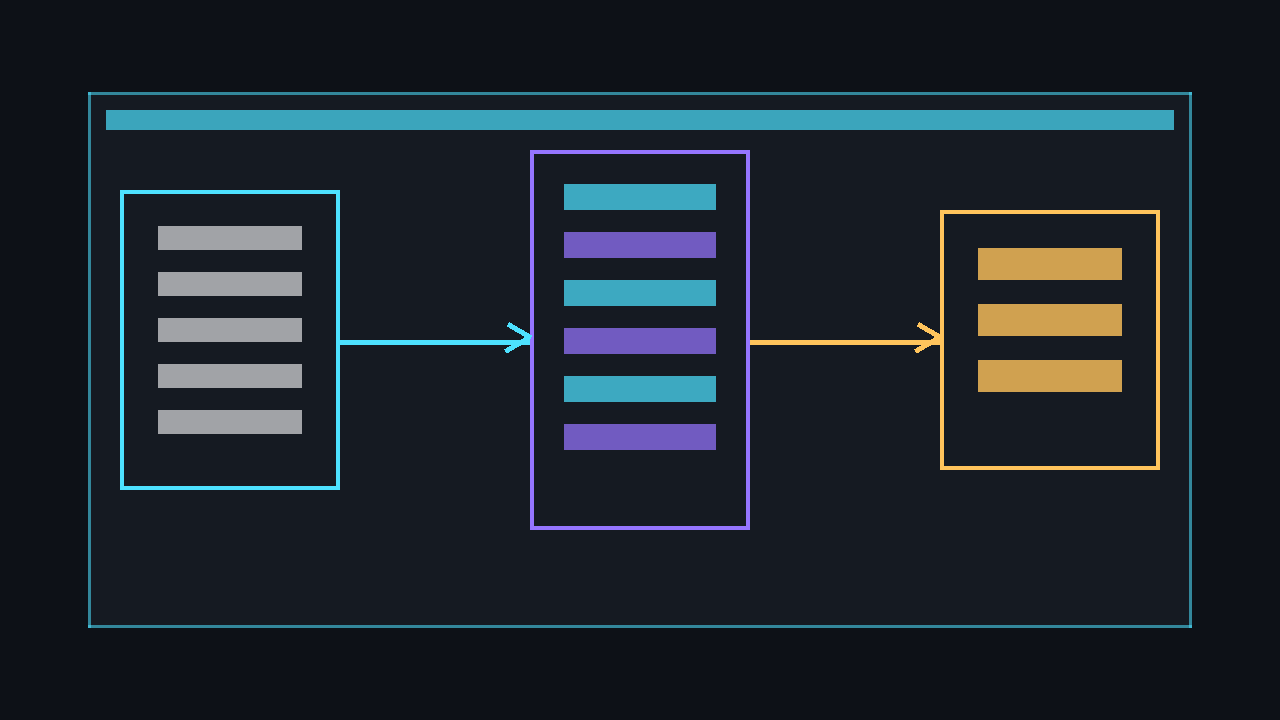
A stack is useful because some screens sit on top of others. A menu can push gameplay. Gameplay can push a pause overlay. The pause overlay can block the gameplay Update so enemies, timers, and movement freeze, but the manager can still draw gameplay underneath the translucent pause panel.
using Microsoft.Xna.Framework;
using Microsoft.Xna.Framework.Graphics;
using Microsoft.Xna.Framework.Input;

public sealed class PauseScreen : GameScreen
{
    private KeyboardState _previousKeyboard;

    public PauseScreen(ScreenManager manager) : base(manager)
    {
    }

    public override bool IsOverlay => true;
    public override bool BlocksLowerScreenUpdate => true;

    public override void Update(GameTime gameTime)
    {
        KeyboardState keyboard = Keyboard.GetState();

        if (keyboard.IsKeyDown(Keys.Escape) && !_previousKeyboard.IsKeyDown(Keys.Escape))
            Manager.Pop();

        _previousKeyboard = keyboard;
    }

    public override void Draw(SpriteBatch spriteBatch)
    {
        // Draw a dim panel or pause text here. Gameplay is already drawn beneath it.
    }
}
💡 SpriteFont note: If you draw text with Content.Load<SpriteFont>("font"), the project must contain a compiled font.spritefont content file in the Content project. Without that file, the game will build but fail when the font is loaded.
Complete example: menu and playing
This complete Game1.cs keeps the sample minimal: Enter starts play from the menu, Escape returns to the menu, and a code-generated 1×1 white pixel is stretched into a moving box. It loads a SpriteFont named font for readable prompts.
using Microsoft.Xna.Framework;
using Microsoft.Xna.Framework.Graphics;
using Microsoft.Xna.Framework.Input;

public enum GameState
{
    Menu,
    Playing
}

public class Game1 : Game
{
    private readonly GraphicsDeviceManager _graphics;
    private SpriteBatch _spriteBatch;
    private SpriteFont _font;
    private Texture2D _pixel;

    private GameState _state = GameState.Menu;
    private KeyboardState _previousKeyboard;

    private Vector2 _boxPosition = new Vector2(80, 140);
    private Vector2 _boxVelocity = new Vector2(180, 120);
    private const int BoxSize = 48;

    public Game1()
    {
        _graphics = new GraphicsDeviceManager(this);
        Content.RootDirectory = "Content";
        IsMouseVisible = true;
    }

    protected override void LoadContent()
    {
        _spriteBatch = new SpriteBatch(GraphicsDevice);

        // Requires Content/font.spritefont in the Content project.
        _font = Content.Load<SpriteFont>("font");

        _pixel = new Texture2D(GraphicsDevice, 1, 1);
        _pixel.SetData(new[] { Color.White });
    }

    protected override void Update(GameTime gameTime)
    {
        KeyboardState keyboard = Keyboard.GetState();

        switch (_state)
        {
            case GameState.Menu:
                UpdateMenu(keyboard);
                break;

            case GameState.Playing:
                UpdatePlaying(gameTime, keyboard);
                break;
        }

        _previousKeyboard = keyboard;
        base.Update(gameTime);
    }

    private void UpdateMenu(KeyboardState keyboard)
    {
        if (WasPressed(keyboard, Keys.Enter))
            _state = GameState.Playing;
    }

    private void UpdatePlaying(GameTime gameTime, KeyboardState keyboard)
    {
        if (WasPressed(keyboard, Keys.Escape))
        {
            _state = GameState.Menu;
            return;
        }

        float dt = (float)gameTime.ElapsedGameTime.TotalSeconds;
        _boxPosition += _boxVelocity * dt;

        Rectangle bounds = GraphicsDevice.Viewport.Bounds;

        if (_boxPosition.X < 0 || _boxPosition.X + BoxSize > bounds.Width)
            _boxVelocity.X = -_boxVelocity.X;

        if (_boxPosition.Y < 0 || _boxPosition.Y + BoxSize > bounds.Height)
            _boxVelocity.Y = -_boxVelocity.Y;

        _boxPosition.X = MathHelper.Clamp(_boxPosition.X, 0, bounds.Width - BoxSize);
        _boxPosition.Y = MathHelper.Clamp(_boxPosition.Y, 0, bounds.Height - BoxSize);
    }

    protected override void Draw(GameTime gameTime)
    {
        GraphicsDevice.Clear(_state == GameState.Menu ? Color.MidnightBlue : Color.CornflowerBlue);

        _spriteBatch.Begin();

        if (_state == GameState.Menu)
            DrawMenu();
        else
            DrawPlaying();

        _spriteBatch.End();

        base.Draw(gameTime);
    }

    private void DrawMenu()
    {
        _spriteBatch.DrawString(_font, "Game States", new Vector2(80, 80), Color.White);
        _spriteBatch.DrawString(_font, "Press Enter to play", new Vector2(80, 130), Color.LightGreen);
    }

    private void DrawPlaying()
    {
        Rectangle box = new Rectangle((int)_boxPosition.X, (int)_boxPosition.Y, BoxSize, BoxSize);
        _spriteBatch.Draw(_pixel, box, Color.OrangeRed);
        _spriteBatch.DrawString(_font, "Playing - press Escape for menu", new Vector2(20, 20), Color.White);
    }

    private bool WasPressed(KeyboardState keyboard, Keys key) =>
        keyboard.IsKeyDown(key) && !_previousKeyboard.IsKeyDown(key);
}
⚠️ Caution: The sample expects a SpriteFont asset called font. In a standard MonoGame content project, add font.spritefont, build the content, and keep the asset name as font.
Run it with dotnet run. Press Enter on the menu, watch the box move, then press Escape to return. Notice that the menu has no box movement logic and the playing state has no menu selection logic.
dotnet build
dotnet run
Common pitfalls
- Letting
Game1own every variable. Move screen-specific fields into the screen that uses them. - Updating paused gameplay. Draw paused gameplay if you want it visible, but skip its
Updatewhile a blocking pause screen is on top. - Changing screens during
Draw. Do transitions inUpdateso the frame has a stable state. - Repeating key input. Compare current and previous
KeyboardStatevalues for single transition presses. - Loading fonts or textures every transition. Load shared content once, then pass references into screens or keep them in a small services object.
Next steps
🎓 Test Your Knowledge
Check your understanding of the key concepts from this tutorial.
What is the simplest way to track a game state in C#?
✔ Correct!
✘ Not quite.
An enum gives named states; a switch statement dispatches the correct logic per state.
What should you do in the state switch inside Draw?
✔ Correct!
✘ Not quite.
Draw should only render visuals. Physics and input belong in Update; content loading belongs in LoadContent or on state transitions.
Which state typically shows first when a game starts?
✔ Correct!
✘ Not quite.
The main menu is the conventional first state on launch. Paused and GameOver are entered from Playing, not at startup.
When transitioning from Playing to Paused, what should you NOT do?
✔ Correct!
✘ Not quite.
While paused, physics that affect game progress should be suspended. Freezing enemies and showing an overlay are correct pause behaviour.