Effects & Systems
Playing Sounds
Audio makes a small MonoGame project feel alive. This beginner tutorial shows how to play short effects with SoundEffect, create controllable loops with SoundEffectInstance, stream music with Song and MediaPlayer, and keep repeated sounds under control.
Download the runnable sample project
Use the ZIP bundle for this article to review the example files. Add your own audio files through the MGCB Editor before running, because no sound assets are shipped with the page.
Add audio through the content pipeline
MonoGame audio is normally loaded from the content pipeline. Add your own files in the MGCB Editor, such as jump.wav, ambience_loop.wav, and background_music.ogg. Build them into Content.mgcb, then load them by asset name without the file extension.
⚠️ Caution: Content.Load<SoundEffect>("jump") only works after jump.wav or a supported audio source has been added to Content.mgcb and built. If the asset name or importer is wrong, loading fails before the sound can play.
Short effects with SoundEffect
Use SoundEffect for short sound effects: jumps, clicks, pickups, impacts, and menu blips. Load once in LoadContent, then call Play when the event happens.
using Microsoft.Xna.Framework;
using Microsoft.Xna.Framework.Audio;
using Microsoft.Xna.Framework.Input;

public class Game1 : Game
{
    private SoundEffect _jumpSound;
    private KeyboardState _previousKeyboard;

    protected override void LoadContent()
    {
        // Add jump.wav to Content.mgcb, then load it without the extension.
        _jumpSound = Content.Load<SoundEffect>("jump");
    }

    protected override void Update(GameTime gameTime)
    {
        KeyboardState keyboard = Keyboard.GetState();
        bool pressedSpace = keyboard.IsKeyDown(Keys.Space) && _previousKeyboard.IsKeyUp(Keys.Space);

        if (pressedSpace)
        {
            _jumpSound.Play();

            // Overload: volume 0..1, pitch -1..1, pan -1..1.
            _jumpSound.Play(0.75f, 0f, -0.25f);
        }

        _previousKeyboard = keyboard;
        base.Update(gameTime);
    }
}
💡 SoundEffect.Play(volume, pitch, pan) is handy for quick variation. Keep volume between 0f and 1f, pitch between -1f and 1f, and pan between -1f left and 1f right.
Looping and controllable instances
SoundEffect.Play() is fire-and-forget. When a sound needs to loop, pause, stop, or change volume over time, create a SoundEffectInstance. A looping ambience bed, engine hum, or rain sound is a good fit.
using Microsoft.Xna.Framework;
using Microsoft.Xna.Framework.Audio;
using Microsoft.Xna.Framework.Input;

public class AmbienceExample : Game
{
    private SoundEffect _ambienceSound;
    private SoundEffectInstance _ambience;

    protected override void LoadContent()
    {
        _ambienceSound = Content.Load<SoundEffect>("ambience_loop");
        _ambience = _ambienceSound.CreateInstance();
        _ambience.IsLooped = true;
        _ambience.Volume = 0.35f;
        _ambience.Play();
    }

    protected override void Update(GameTime gameTime)
    {
        KeyboardState keyboard = Keyboard.GetState();

        if (keyboard.IsKeyDown(Keys.P) && _ambience.State == SoundState.Playing)
            _ambience.Pause();

        if (keyboard.IsKeyDown(Keys.R) && _ambience.State == SoundState.Paused)
            _ambience.Resume();

        if (keyboard.IsKeyDown(Keys.S))
            _ambience.Stop();

        _ambience.Volume = MathHelper.Clamp(_ambience.Volume, 0f, 1f);
        base.Update(gameTime);
    }

    protected override void UnloadContent()
    {
        _ambience?.Dispose();
        base.UnloadContent();
    }
}
⚠️ Caution: Dispose long-lived instances when your screen, state, or game closes. Do not keep creating new looping instances without stopping the old one.
Background music with Song
Use Song and MediaPlayer for background music. Music is typically streamed rather than held as a short effect, so it is better for longer tracks such as a menu theme or level music.
using Microsoft.Xna.Framework;
using Microsoft.Xna.Framework.Media;

public class MusicExample : Game
{
    protected override void LoadContent()
    {
        Song music = Content.Load<Song>("background_music");

        MediaPlayer.IsRepeating = true;
        MediaPlayer.Volume = 0.5f;
        MediaPlayer.Play(music);
    }
}
⚠️ Warning: Song streams through the platform media system. On some platforms, mixing streamed Song playback with many heavy SoundEffect instances can be limited or inconsistent. Test on your target platform and keep music separate from rapid effect spam.
A tiny AudioManager
A small wrapper keeps loading names in one place and prevents every class from knowing about the content manager. This version stores short effects in a Dictionary<string, SoundEffect> and exposes PlaySound(name).
using System.Collections.Generic;
using Microsoft.Xna.Framework.Audio;
using Microsoft.Xna.Framework.Content;

public sealed class AudioManager
{
    private readonly ContentManager _content;
    private readonly Dictionary<string, SoundEffect> _sounds = new Dictionary<string, SoundEffect>();

    public AudioManager(ContentManager content)
    {
        _content = content;
    }

    public void LoadSound(string name)
    {
        _sounds[name] = _content.Load<SoundEffect>(name);
    }

    public void PlaySound(string name, float volume = 1f, float pitch = 0f, float pan = 0f)
    {
        if (_sounds.TryGetValue(name, out SoundEffect sound))
            sound.Play(volume, pitch, pan);
    }
}
Avoiding audio spam
The easiest audio bug is calling Play every frame while a key is held. At 60 Hz, that can attempt sixty new instances per second. Use edge-detected input and, for repeating effects, cap how many simultaneous instances are allowed.
private KeyboardState _previousKeyboard;
private double _nextAllowedShotTime;
private readonly double _shotCooldownSeconds = 0.08;

protected override void Update(GameTime gameTime)
{
    KeyboardState keyboard = Keyboard.GetState();
    bool pressedSpace = keyboard.IsKeyDown(Keys.Space) && _previousKeyboard.IsKeyUp(Keys.Space);

    if (pressedSpace && gameTime.TotalGameTime.TotalSeconds >= _nextAllowedShotTime)
    {
        _laserSound.Play(0.7f, 0f, 0f);
        _nextAllowedShotTime = gameTime.TotalGameTime.TotalSeconds + _shotCooldownSeconds;
    }

    _previousKeyboard = keyboard;
    base.Update(gameTime);
}
⚠️ Caution: Event sounds belong on events: key pressed, collision started, item collected, menu changed. They should not be triggered from every frame of a held key, continuing collision, or unchanged state.
For effects that can overlap, such as footsteps or laser shots, keep a tiny pool of instances and refuse to start another sound when the pool is already busy.
using System.Collections.Generic;
using Microsoft.Xna.Framework.Audio;

private readonly List<SoundEffectInstance> _activeShots = new List<SoundEffectInstance>();
private const int MaxShotInstances = 4;

private void PlayLimitedShot(SoundEffect shotSound)
{
    _activeShots.RemoveAll(instance => instance.State == SoundState.Stopped);

    if (_activeShots.Count >= MaxShotInstances)
        return;

    SoundEffectInstance instance = shotSound.CreateInstance();
    instance.Volume = 0.65f;
    instance.Play();
    _activeShots.Add(instance);
}
Simple 2D positional audio
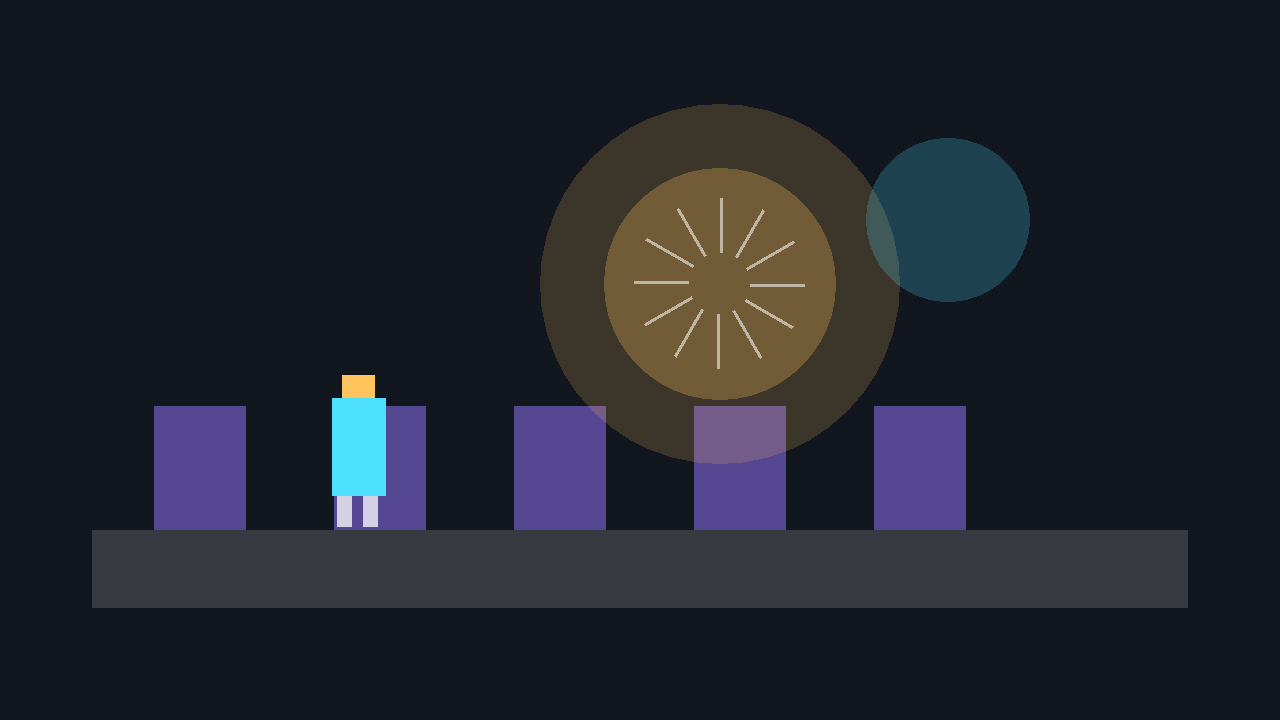
For a 2D game, you can fake position by adjusting pan from the horizontal offset and volume from distance to the listener. The closer the emitter is, the louder it becomes; the further left or right it is, the more it pans.
using Microsoft.Xna.Framework;
using Microsoft.Xna.Framework.Audio;

public static class PositionalAudio2D
{
    public static void PlayAt(SoundEffect sound, Vector2 soundPosition, Vector2 listenerPosition, float maxDistance)
    {
        Vector2 offset = soundPosition - listenerPosition;
        float distance = offset.Length();

        float volume = MathHelper.Clamp(1f - (distance / maxDistance), 0f, 1f);
        float pan = MathHelper.Clamp(offset.X / maxDistance, -1f, 1f);

        if (volume > 0f)
            sound.Play(volume, 0f, pan);
    }
}
Complete example
This complete Game1.cs loads your own jump.wav and ambience_loop.wav from the content pipeline. Press Space to play the jump sound once, hold Up or Down to adjust ambience volume, and press M to pause or resume the loop.
using Microsoft.Xna.Framework;
using Microsoft.Xna.Framework.Audio;
using Microsoft.Xna.Framework.Graphics;
using Microsoft.Xna.Framework.Input;

public class Game1 : Game
{
    private readonly GraphicsDeviceManager _graphics;
    private SpriteBatch _spriteBatch;

    private SoundEffect _jumpSound;
    private SoundEffect _ambienceSound;
    private SoundEffectInstance _ambience;

    private KeyboardState _previousKeyboard;
    private float _ambienceVolume = 0.35f;

    public Game1()
    {
        _graphics = new GraphicsDeviceManager(this);
        Content.RootDirectory = "Content";
        IsMouseVisible = true;
    }

    protected override void LoadContent()
    {
        _spriteBatch = new SpriteBatch(GraphicsDevice);

        // Add jump.wav and ambience_loop.wav to Content.mgcb first.
        _jumpSound = Content.Load<SoundEffect>("jump");
        _ambienceSound = Content.Load<SoundEffect>("ambience_loop");

        _ambience = _ambienceSound.CreateInstance();
        _ambience.IsLooped = true;
        _ambience.Volume = _ambienceVolume;
        _ambience.Play();
    }

    protected override void Update(GameTime gameTime)
    {
        KeyboardState keyboard = Keyboard.GetState();

        if (keyboard.IsKeyDown(Keys.Escape))
            Exit();

        bool pressedSpace = keyboard.IsKeyDown(Keys.Space) && _previousKeyboard.IsKeyUp(Keys.Space);
        bool pressedMute = keyboard.IsKeyDown(Keys.M) && _previousKeyboard.IsKeyUp(Keys.M);

        if (pressedSpace)
            _jumpSound.Play(0.85f, 0f, 0f);

        float dt = (float)gameTime.ElapsedGameTime.TotalSeconds;

        if (keyboard.IsKeyDown(Keys.Up))
            _ambienceVolume += dt;

        if (keyboard.IsKeyDown(Keys.Down))
            _ambienceVolume -= dt;

        _ambienceVolume = MathHelper.Clamp(_ambienceVolume, 0f, 1f);
        _ambience.Volume = _ambienceVolume;

        if (pressedMute)
        {
            if (_ambience.State == SoundState.Playing)
                _ambience.Pause();
            else if (_ambience.State == SoundState.Paused)
                _ambience.Resume();
        }

        _previousKeyboard = keyboard;
        base.Update(gameTime);
    }

    protected override void Draw(GameTime gameTime)
    {
        GraphicsDevice.Clear(Color.CornflowerBlue);
        base.Draw(gameTime);
    }

    protected override void UnloadContent()
    {
        _ambience?.Dispose();
        base.UnloadContent();
    }
}
💡 Optional advanced route: DynamicSoundEffectInstance can generate audio samples in code, such as a simple tone or synthesiser. For beginner games, pipeline-loaded SoundEffect and Song assets are usually easier to manage.
dotnet build
dotnet run
Common pitfalls
- Forgetting the content pipeline. Add audio to
Content.mgcband load by asset name, not file extension. - Calling
Playevery frame. Edge-detect input and trigger sounds only when an event starts. - Never stopping loops. Keep a
SoundEffectInstancereference so ambience can be paused, stopped, and disposed. - Using music for tiny effects. Use
SoundEffectfor short clips andSongfor longer streamed tracks.
Next steps
🎓 Test Your Knowledge
Check your understanding of the key concepts from this tutorial.
What is the difference between SoundEffect and Song in MonoGame?
✔ Correct!
✘ Not quite.
Use SoundEffect for in-game sounds (bullets, footsteps); use Song via MediaPlayer for background music.
How do you play a SoundEffect at half volume?
✔ Correct!
✘ Not quite.
SoundEffectInstance inst = _sound.CreateInstance(); inst.Volume = 0.5f; inst.Play();
What does SoundEffect.Play() return?
✔ Correct!
✘ Not quite.
bool played = _sound.Play(); if (!played) { /* too many concurrent sounds */ }
Which class controls background music playback?
✔ Correct!
✘ Not quite.
MediaPlayer.Play(_bgMusic); MediaPlayer.IsRepeating = true; MediaPlayer.Volume = 0.8f;